
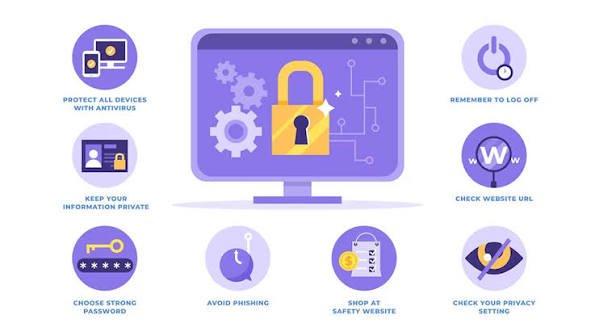
The internet has become an important part of everyday life. People use it for shopping, banking, studying, working, communicating, entertainment, and almost everything in between. However, as our online activities continue to grow, so do the risks associated with using the internet. Cybercriminals are constantly looking for ways to steal personal information, track users, spread malware, or gain unauthorized access to online accounts.
This is where secure browsing becomes important.
Secure browsing means using the internet in a way that protects your personal information, devices, accounts, and online privacy. It involves more than simply having antivirus software installed. Safe browsing requires a combination of good online habits, secure connections, strong passwords, privacy settings, and awareness of common online threats.
Whether you are browsing websites on your phone or computer, understanding the basics of secure browsing can significantly reduce your chances of becoming a victim of cybercrime.
What Is Secure Browsing?
Secure browsing refers to the practice of accessing websites and online services while taking appropriate steps to protect your data and privacy. When you browse the internet, information such as your IP address, browsing activity, login details, and personal information may be exposed or collected in different ways.
A secure browsing approach helps minimize these risks.
For example, using websites that have HTTPS encryption, avoiding suspicious links, keeping your browser updated, and being careful when using public Wi-Fi are all parts of secure browsing. It also means understanding what information you share online and knowing how to recognize potentially dangerous websites.
Secure browsing does not mean that you can become completely invisible online. Instead, it is about reducing unnecessary risks and making it harder for attackers, scammers, and malicious websites to compromise your information.
Why Is Secure Browsing Important?
Cyber threats can affect anyone, regardless of their technical knowledge. You do not need to visit suspicious websites intentionally to encounter a security problem. Sometimes, a simple email link, online advertisement, fake login page, or compromised website can expose you to danger.
One of the biggest reasons secure browsing matters is the protection of personal information. Your name, email address, phone number, financial details, and login credentials can be valuable to cybercriminals.
Identity theft is another serious concern. If attackers obtain enough personal information, they may attempt to impersonate you or gain access to your accounts.
Secure browsing can also help protect your financial information. Online shopping and banking require users to enter sensitive details, making these activities attractive targets for cybercriminals.
In addition, secure browsing helps protect your devices from malicious software. Some websites may contain harmful downloads or scripts designed to exploit security weaknesses.
Use Secure and Trusted Websites
One of the easiest ways to improve your online security is to pay attention to the websites you visit.
Look for HTTPS in the website address. HTTPS indicates that communication between your browser and the website is encrypted. Most modern browsers also display a padlock icon when a connection uses HTTPS.
However, HTTPS alone does not prove that a website is trustworthy. Scammers can also create HTTPS-enabled websites. Therefore, you should check the website address carefully before entering sensitive information.
For example, a fake website may use a domain name that looks almost identical to a legitimate company. Small spelling changes can be easy to miss, especially when you are in a hurry.
When entering passwords, payment information, or other sensitive data, make sure you are using the official website or a trusted application.
Keep Your Browser Updated
Browser updates are not only about getting new features. They often contain important security fixes that protect users against recently discovered vulnerabilities.
Popular browsers regularly release updates to address security weaknesses. If you continue using an outdated version, attackers may be able to exploit vulnerabilities that have already been fixed in newer versions.
For this reason, enable automatic updates whenever possible. You should also keep your operating system and other important software updated.
A secure browser combined with an outdated operating system can still leave your device vulnerable, so security should be considered as a complete system rather than a single application.
Be Careful With Links and Downloads
Phishing is one of the most common methods criminals use to trick internet users. A phishing message may appear to come from a bank, delivery company, social media platform, employer, or even a friend.
The message may ask you to click a link, confirm your account, download a file, or provide personal information.
Before clicking a link, consider whether the message is expected. Look for unusual language, urgent demands, suspicious addresses, or unexpected attachments.
You can also move your cursor over a link on a computer to see where it actually leads before opening it.
Never download files from websites or messages you do not trust. Malicious downloads can contain software designed to steal information or damage your device.
Use Strong and Unique Passwords
Passwords are still one of the most important parts of online security. Unfortunately, many people reuse the same password across multiple websites.
This creates a major problem. If one website suffers a data breach and your password is exposed, attackers may try the same password on your email, social media, shopping, or banking accounts.
Using a unique password for every important account reduces this risk.
Strong passwords should generally be long, difficult to guess, and different from information that others could easily discover about you. A password manager can make this easier by generating and securely storing unique passwords for different accounts.
You should also enable multi-factor authentication (MFA) whenever a service offers it. MFA provides an additional layer of protection because logging in requires more than just a password.
Be Careful When Using Public Wi-Fi
Public Wi-Fi is convenient, but it can introduce additional security risks.
Airports, hotels, restaurants, cafes, and shopping centers may offer free wireless networks. The problem is that you may not always know who operates a particular network or how secure it is.
Avoid performing highly sensitive activities, such as online banking, on unknown public networks whenever possible. If you must use public Wi-Fi, make sure your device and applications are updated and consider using a reputable VPN service for an additional layer of protection.
You should also avoid connecting automatically to unknown Wi-Fi networks. Disable automatic connection features if necessary.
Protect Your Privacy Online
Secure browsing is not only about preventing hackers from stealing your information. Privacy is also an important part of safe internet use.
Many websites use cookies and other tracking technologies to understand how visitors interact with their services. Some forms of tracking can be useful, while others may collect more information than users expect.
Review the privacy settings in your browser and regularly check the permissions given to websites. Be cautious about allowing websites to access your location, camera, microphone, or other sensitive features unless there is a genuine reason.
You should also think carefully before sharing personal information on social media. Details such as your location, birthday, workplace, travel plans, or family information can sometimes be used by scammers or attackers.
Avoid Suspicious Pop-Ups and Security Warnings
Have you ever visited a website and suddenly seen a message claiming that your device is infected with a virus?
Be careful.
Fake security warnings are commonly used to scare users into downloading malicious software or calling fraudulent support numbers. Legitimate browser or operating system security alerts generally do not require you to panic or immediately provide personal information.
If a pop-up tells you that you have a serious infection, close the browser window instead of clicking unknown buttons. If you are concerned about your device, use trusted security software to perform a scan.
Do not allow fear or urgency to make your decisions for you.
Use Security Software
Security software can provide another layer of protection while browsing the internet. Antivirus and anti-malware tools can detect and block many known threats.
However, security software should not replace safe browsing habits.
Think of it as one part of your overall security strategy. You still need to recognize phishing attempts, use strong passwords, install updates, and avoid suspicious websites.
Your browser may also have built-in security features that warn you about potentially dangerous websites or downloads. Keep these protections enabled unless you have a specific reason to change them.
Secure Browsing on Mobile Devices
Mobile phones are used for many of the same activities as computers, including banking, shopping, email, and social media. This means mobile users also need to practice secure browsing.
Download applications only from reputable app stores and carefully review the permissions requested by apps. Keep your phone’s operating system and apps updated.
Use a screen lock and, where available, biometric security such as fingerprint or facial recognition.
Be particularly careful when clicking links received through text messages or messaging apps. Scammers frequently use these platforms to send fake delivery notices, account alerts, and promotional offers.
Frequently Asked Questions About Secure Browsing
1. What does secure browsing mean?
Secure browsing means using the internet in a way that reduces security and privacy risks. It includes visiting trusted websites, using secure connections, keeping software updated, avoiding suspicious links, and protecting personal information.
2. Is browsing with HTTPS completely safe?
HTTPS encrypts communication between your browser and a website, which helps protect information while it is being transmitted. However, HTTPS does not guarantee that the website itself is legitimate. You should still check the domain name and be cautious about what information you provide.
3. How can I browse the internet more safely?
Use updated browsers and operating systems, create strong passwords, enable multi-factor authentication, avoid suspicious links and downloads, and be careful when using public Wi-Fi. Reviewing your browser’s privacy and security settings can also help.
4. Is public Wi-Fi safe for browsing?
Public Wi-Fi can be less secure than a trusted private network. Avoid entering sensitive financial or personal information on unknown networks when possible. If you need to use public Wi-Fi, take additional security precautions and make sure your device is properly protected.
5. Can a VPN improve secure browsing?
A reputable VPN can encrypt your internet traffic between your device and the VPN server, which can provide additional privacy and security, particularly on untrusted networks. However, a VPN does not protect you from phishing, malware, weak passwords, or every other online threat.
6. Why should I update my web browser?
Browser updates often include security patches that fix vulnerabilities. Using an outdated browser can leave your device exposed to threats that newer versions are designed to prevent. Automatic updates are usually the easiest way to stay protected.
7. How do I know if a website is suspicious?
Check the website address carefully for spelling mistakes or unusual domains. Be cautious if a website pressures you to provide personal information, download unknown files, or make an immediate payment. Unexpected pop-ups and aggressive security warnings can also be warning signs.
8. What is the role of passwords in secure browsing?
Strong and unique passwords help protect your online accounts from unauthorized access. Avoid reusing the same password across multiple services. A password manager can help you create and manage.
Final Thoughts
Secure browsing is not a complicated technical process. It is mainly about developing better online habits and staying aware of the risks.
Using HTTPS, keeping your browser updated, avoiding suspicious links, creating strong and unique passwords, enabling multi-factor authentication, protecting your privacy, and being careful with public Wi-Fi can all make your online experience safer.
No security method can eliminate every possible threat. However, taking a few simple precautions can greatly reduce your exposure to common cyber risks.
The most important thing is to slow down when something online feels unusual. Cybercriminals often rely on urgency, fear, curiosity, or excitement to make people act without thinking. Taking a moment to verify a website, message, or download can prevent a serious security problem.
In the end, secure browsing is about making informed decisions every time you go online. With the right habits and a little awareness, you can enjoy the internet while doing much more to protect your personal information, accounts, devices, and privacy.